Use LinkedIn voice messages as short, personalized follow-ups to warm connections, not as a cold-outreach tool. They only work on mobile, cap out at 60 seconds, and only reach first-degree connections, so they fit best as touch two or three in a sequence, after someone has already seen your name once. Keep them to 30 to 45 seconds, mention something specific about the person in the first line, and you'll outperform a plain text message most of the time.
TL;DR:
- Voice messages are limited to 60 seconds, sent only to first-degree connections from the mobile app, and cannot be recorded from desktop.
- Best results come from 30 to 45 seconds messages that reference a specific person or recent activity in the first line.
- Using voice notes after an initial text or connection establishes trust, with punchy scripts increasing reply rates by about 30 percent.
- Manual recording maintains authenticity, and scheduling tools can help manage daily quotas of 5 to 10 personalized voice notes without losing quality.
- Avoid sending first-time voice messages to cold prospects, sticking instead to warm connections and high-value targets to maximize engagement.
Table of Contents
- What Are LinkedIn Voice Messages, and What Are the Limits?
- How to Record and Send a Voice Message on LinkedIn
- Best Practices and Script Templates for Sales Outreach
- When to Use Voice Notes vs. Text in Your Sequence
- Scaling Voice Notes Without Losing the Human Signal
- Troubleshooting and Etiquette for Voice Messages
- Making Voice Notes Work Inside an SDR Workflow
- Scale Your LinkedIn Outreach Without Burning Out Your Reps
- Sources
- FAQ
What Are LinkedIn Voice Messages, and What Are the Limits?
A LinkedIn voice message is a short audio clip you record and send inside LinkedIn's native messaging app, similar to a voice memo but delivered through your connections instead of a phone number. LinkedIn's own help documentation confirms the feature is built for quick, personal exchanges rather than mass communication, and three hard limits shape how you can use it in sales.
- Mobile-only recording. You can record and send a voice note only from the LinkedIn mobile app; desktop lets recipients play a message but never record one.
- Sixty-second cap. LinkedIn's product announcement sets the maximum length at one minute, though practitioners find 30 to 45 seconds performs best.
- First-degree connections only. You cannot send a voice note to someone you're not connected to, which rules it out for cold prospecting entirely.
- No undo. Once you release your finger and the message sends, it's gone. There's no recall, no edit, no second chance.
That last constraint matters more than it sounds. A shaky opener or a stumbled name can't be fixed after the fact, only followed up.
How to Record and Send a Voice Message on LinkedIn
Sending a voice message on LinkedIn takes seconds once you know the sequence, but the microphone icon trips people up more often than you'd expect.
- Open the LinkedIn app and go to the conversation with your first-degree connection.
- Tap the microphone icon inside the message box.
- Grant microphone access if LinkedIn prompts you. This only happens the first time.
- Press and hold the icon to record, then release to send immediately.
- Swipe away from the icon before releasing if you want to cancel the take instead of sending it.
Recipients see a waveform they can tap to play, and there's no visible "listened" receipt the way there is with some read confirmations on text messages, so don't assume silence means it went unheard. If the microphone icon doesn't appear, update the app first. That fixes it most of the time. If it still won't show, check your phone's system settings to confirm LinkedIn has microphone permission at the OS level, not just inside the app.
Pro Tip: Record your first attempt as a throwaway. Play it back once before you send the real one. You'll catch a rushed pace or a dead-flat tone almost every time.
Best Practices and Script Templates for Sales Outreach
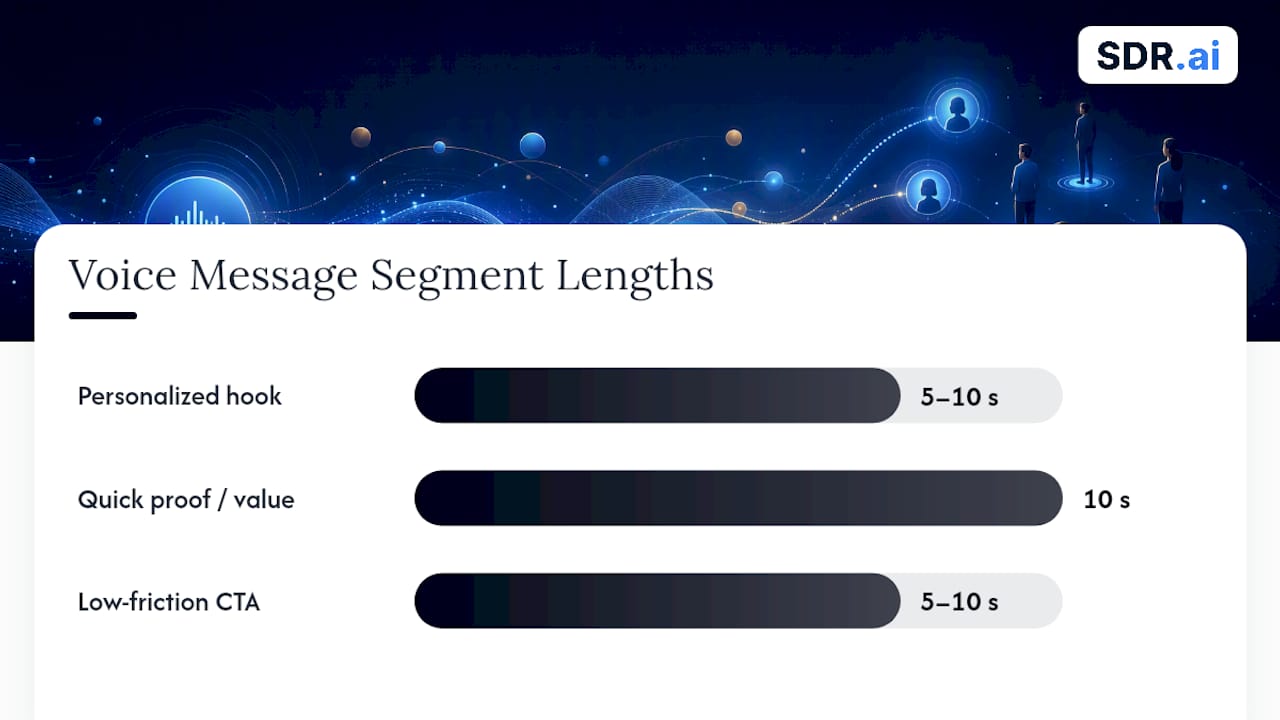
The reply-rate lift attributed to voice notes, often cited around a 30% increase over text alone, only shows up when the message is personal enough to justify its existence. A generic pitch read aloud is worse than a generic pitch typed out, because it wastes 30 seconds of someone's attention instead of five.
A four-part formula keeps that from happening:
- Personalized hook (5 to 10 seconds). Reference their recent post, a job change, or something specific to them, not their industry.
- Who you are (short). One sentence. Your name and why you're reaching out, nothing more.
- Quick proof or value (10 seconds). A concrete result, a shared connection, or a reason this matters to them right now.
- Low-friction CTA (5 to 10 seconds). Ask for a reply or a quick reaction, not a calendar booking.
If you can't fill that first 10 seconds with something specific to the person, send text instead. That's the single clearest signal practitioners point to when deciding which channel to use.
Five templates worth adapting:
- Post-connection: "Hey [name], thanks for connecting. Saw you're leading demand gen at [company], curious how you're thinking about pipeline this quarter."
- Follow-up after silence: "Hi [name], following up on my note last week. No pressure, just wanted to make sure it didn't get buried."
- Congratulations: "Saw the news about your promotion to [title], congrats. Would love to hear how the new role's shaping up."
- Event follow-up: "Great meeting you at [event]. Your point about [topic] stuck with me. Wanted to keep the conversation going."
- Re-engagement: "It's been a minute since we last talked. Curious if [challenge you mentioned] is still on your plate."
Pro Tip: Smile while you record. It changes your vocal tone in a way listeners pick up on even when they can't see your face. Find a quiet room, keep your pace slightly slower than normal conversation, and read your hook out loud twice before hitting record so it doesn't sound like you're reading it.
When to Use Voice Notes vs. Text in Your Sequence
Voice notes work best as touch two or three, after a prospect has already seen your name once and knows the connection is real. Sending audio as your very first message to a brand-new connection often feels intrusive before any trust exists.
Use text instead of voice when you need to share a link, a dense update, or anything the recipient might want to reread. Voice earns its place after a trigger event, like a new post, a funding announcement, or a shared event, or for high-value prospects where the extra effort signals real interest.
A sample five-step sequence:
- Day 1: Connection request with a one-line personalized note.
- Day 3: Text message referencing something specific from their profile.
- Day 6: Voice note, 30 to 45 seconds, using the four-part formula.
- Day 10: Short text follow-up if no reply, low-pressure tone.
- Day 15: Final voice note tied to a new trigger, like a company update.
Track replies and booked-meeting rate by channel for each step. If voice notes aren't outperforming text at the same sequence position after a few dozen sends, the script needs work before you send more.
Scaling Voice Notes Without Losing the Human Signal
Recording each voice note by hand takes real time. A rep sending 30 to 40 personalized outbound touches a day can realistically fit in 5 to 10 quality voice notes, not more, without the quality dropping. That's the practical daily quota worth setting before you build any workflow around this channel.
Sequence tools can queue the voice-note step so it appears on a rep's task list at the right point in a cadence, and some let you record directly in-browser instead of switching to mobile. What none of them should do is generate the audio itself. Automated or AI-cloned voice risks undermining the exact signal that makes this channel work in the first place, since voice notes succeed because they demonstrate visible human effort in an inbox full of automated text.
| Approach | Speed | Authenticity signal | Best fit |
|---|---|---|---|
| Fully manual | Slow | Highest | Small lists, high-value accounts |
| Sequenced with manual voice step | Moderate | High | Most SDR teams |
| Fully automated audio | Fast | Lowest | Not recommended for cold or warm outreach |
A workable middle ground treats sequencing and scheduling as the automated layer while keeping the actual recording as a manual task queued by the workflow tool. The rep still presses record, but they never have to remember when.
Troubleshooting and Etiquette for Voice Messages
Most technical problems trace back to permissions or an outdated app. If the microphone icon won't appear, check that LinkedIn has microphone access in your phone's settings, then confirm you're running the latest app version. Swiping away before release cancels a take; releasing your finger sends it immediately, with no confirmation screen and no way to recall it once it's gone.
On etiquette, keep messages short and personal from the first second. Don't open with a scheduling request. Save that for the reply.
- Keep it under 45 seconds even when the app allows more.
- Reference something specific to the person in the opening line.
- Never ask for a meeting before they've responded once.
- Follow up with a short text if there's no reply within a few days.
Pro Tip: If a voice note goes unanswered after a week, don't send a second voice note. Switch to text. Repeating the same format signals you didn't notice the silence.
Making Voice Notes Work Inside an SDR Workflow
Most teams that add voice notes to their cadence see the reply-rate lift within a few weeks, not a few sends, because the signal depends on volume and consistency, not a single clever script. Setting a daily quota of 5 to 10 notes per rep and holding it steady beats a burst of 30 one week and none the next.
Some notes should be recorded in the moment, right after seeing a trigger post, because that immediacy shows in your voice. Scripted short takes work better for standard follow-ups where timing matters less than consistency. SDR.ai's own approach to LinkedIn-first outreach treats the manual voice step the same way: automate the sequencing, keep the human moment human.
— Chad
Scale Your LinkedIn Outreach Without Burning Out Your Reps
Voice notes lift replies, but they don't fix the bigger problem: most SDR teams can't sustain 5 to 10 personalized touches a day across hundreds of prospects while also making calls and updating a CRM. This approach handles targeted LinkedIn outreach, intent-based prospecting, and warm calling through an AI-Dialer, so your team's manual effort goes into the moments that need a human voice, not the repetitive parts around them.
If you're evaluating whether to build this in-house or bring in outside help, track three numbers during any pilot: reply-rate lift, meetings actually booked, and how long it takes a new rep to ramp. Clients typically see over 20 qualified meetings a month with a fraction of the manpower a traditional setup requires. Check out the AI-Dialer product page to see how the parallel dialing works, or visit Sdr to get a pilot started.
Sources
For platform rules, see LinkedIn Help and the LinkedIn product blog. For scaling workflows and campaign ideas, see Leonar's recruiter guide and 121 Group's LinkedIn B2B resources.
- Send voice messages in LinkedIn Messaging | LinkedIn Help
- Should You Use LinkedIn Voice Messages for Outreach? | LinkedInsider
- LinkedIn voice messages: The fastest path to your next 10 clients (Forbes)
FAQ
Can You Send Audio Messages on LinkedIn?
Yes. LinkedIn's native voice message feature lets you record and send audio clips up to 60 seconds to any first-degree connection directly from the mobile app. You can't send one to someone you're not yet connected with, and you can't record from desktop.
Can I Listen to a Voice Message Without the Sender Knowing?
LinkedIn doesn't show the sender a "listened" indicator the way some messaging apps show read receipts, so you can generally play a voice message privately. The sender will only know you've engaged if you reply.
Is There Private Messaging on LinkedIn?
Yes, LinkedIn Messaging works as private, one-to-one or group conversation between connections, separate from public posts and comments. Voice messages sit inside that same private inbox, visible only to the people in the conversation.
Can I Listen to a Voice Message I Sent?
Yes, sent voice messages remain playable in your own conversation thread just like any other message. There's no option to recall or delete the audio itself once it's sent, so listen back before releasing the recording if you want a chance to redo it.